
Run python bub.py --help to get a quick overview. Basically, you need to tell BUB where to find all your FIN files, as well as the associated SLS file. You can also supply a filename glob, if you have placed multiple sets of FINs in a single directory.
$ python bub.py -f ${HOME}/data/fins-part2/ \
  --sls ${HOME}/data/021611\ control\ map.SLS
Reading table of elements...
Reading SLS information...
Processing field: 'Fe57'...
Processing field: 'Cu63'...
Processing field: 'Zn66'...
Processing field: 'Zn70'...
Processing field: 'Se82'...
Processing field: 'Mo95'...
Processing field: 'Au197'...
BUB will scan the files for all the fields available. For every field, it will generate a nrrd (.nhdr and associated data file). You can load up this .nhdr in ImageVis3D for advanced visualization.
|
If you have the PIL installed, BUB will also generate a preview image for each field. It uses the color table given in Figure 1 for this purpose. The table is applied relative to each field; so the red maximum is always the maximum value seen in that field, and every image should always have at least one red pixel. Note that the table specifically masks out the lowest 5% of the data, which for our purposes tends to be background.
BUB performs some simple data validation. This does have a modest performance impact, but the data are currently very small so this does not matter much.
Some of these checks may be erroneous. If BUB is complaining about data which are actually valid, you can set the BUB_NO_VALIDATE variable in your environment, and BUB will stop raising errors. There is currently no way to selectively ignore errors, though; they're either all-on or all-off.
Of course, you could just use the preview images. However, this is pretty limiting; the color table isn't appropriate for all kinds of data. A better approach is to use ImageVis3D, which has significantly better visualization capabilities. When you download ImageVis3D, make sure to download one of the devbuilds instead of an official release; I have recently made some changes which make it easier to view these biometallomics data in ImageVis3D.
 |
 |
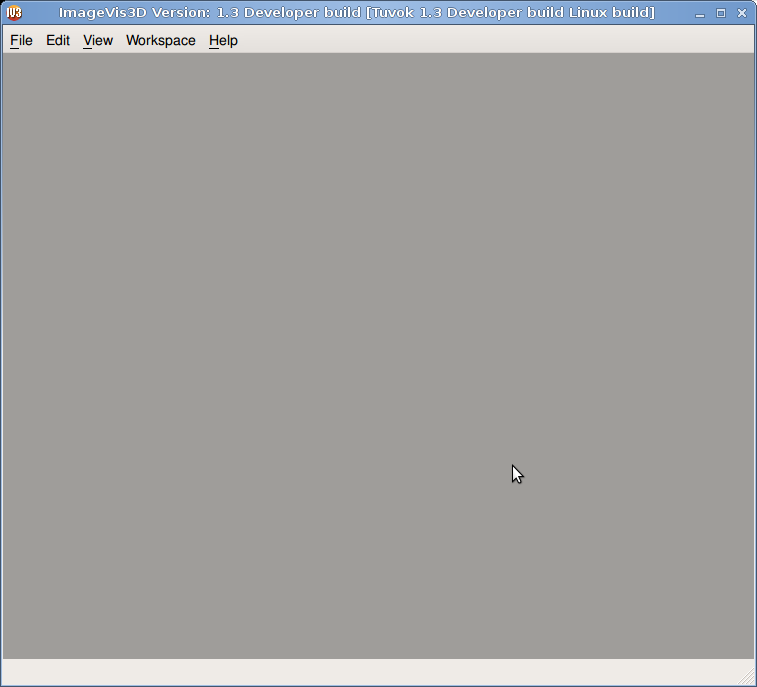
When you first open ImageVis3D, you'll be presented with something like Figure 2, left. You'll want to first open the "Rendering Options" from the "Workspace" menu, as shown in Figure 2 right. The author likes to mount this window to the main ImageVis3D window by dragging it to the appropriate place, as shown in Figure 3.
 |
 |
 |
You'll be presented with a new window that looks something like the one given in Figure 5. In the background of that figure, you'll note a landscape of gray "peaks" on top of a black backdrop. This represents a histogram of your data, with the left side mapped to the minimum value in the dataset and the right mapped to the maximum. This can give you a quick idea of the data distribution; for the biometallomics datasets, most data tends to cluster on the low end of the spectrum.
Note the 4 colored lines in Figure 5. The correspond to the "Color Component" checkboxes on the left of the widget. In your session, all you see right now is the white line: this is because the other colors are "underneath" the white line, and thus they get occluded. Each line dictates how much of that color the corresponding data value will have. For example, in Figure 5, the red channel is fairly high to the left of the histogram. This means that the lowest values in the dataset will have a high red component. However, note that the green component is maxed in the same region; this means those data values will have strong red and very strong green components. They will therefore show up yellow in our visualization.

|
Of special note is the white line. This corresponds to the 'Alpha' component, which in turn controls which data values are visible. By minimizing the alpha component, none of the corresponding data values will show up -- regardless of the placement of the other lines. Due to the way this is implemented, the author refers to this is "zeroing" the alpha. Alternatively, maximizing the alpha is setting it to "1". Therefore, you might describe the alpha in Figure 5, as well as the default transfer function you have by following this tutorial, as being a "function which varies smoothly from 0 to 1."
The first thing you want to do when loading a new dataset is to 'find' your data. Generally this is easy to see from the histogram, but the default alpha might be 0 for the areas where your data lie. Click the checkboxes on the left so that only the 'Alpha' checkbox is left on. Then mouse over to the histogram and click+hold your right mouse button. Drag the mouse from left to right; the 'Alpha' line now follows your mouse. You can drag up and down to control how "smooth" the transition from 0 to 1 is. Smooth functions tend to alleviate harsh contrasts between changing pixel values, which can create more aesthetically pleasing images. Sharp contrasts are better for interrogating data explicitly ("I don't want to see anything below 968!").
If you cannot get the transition you're looking for with the smoothstep function, you can use the left mouse button to explicitly set a value.
At this point, if you're using BUB, you know me personally. Call my cell, Skype me, or send me an email :)